Duo Security Multi-Factor Authentication

Protect Your Hawkeye Account with Multi-Factor Authentication

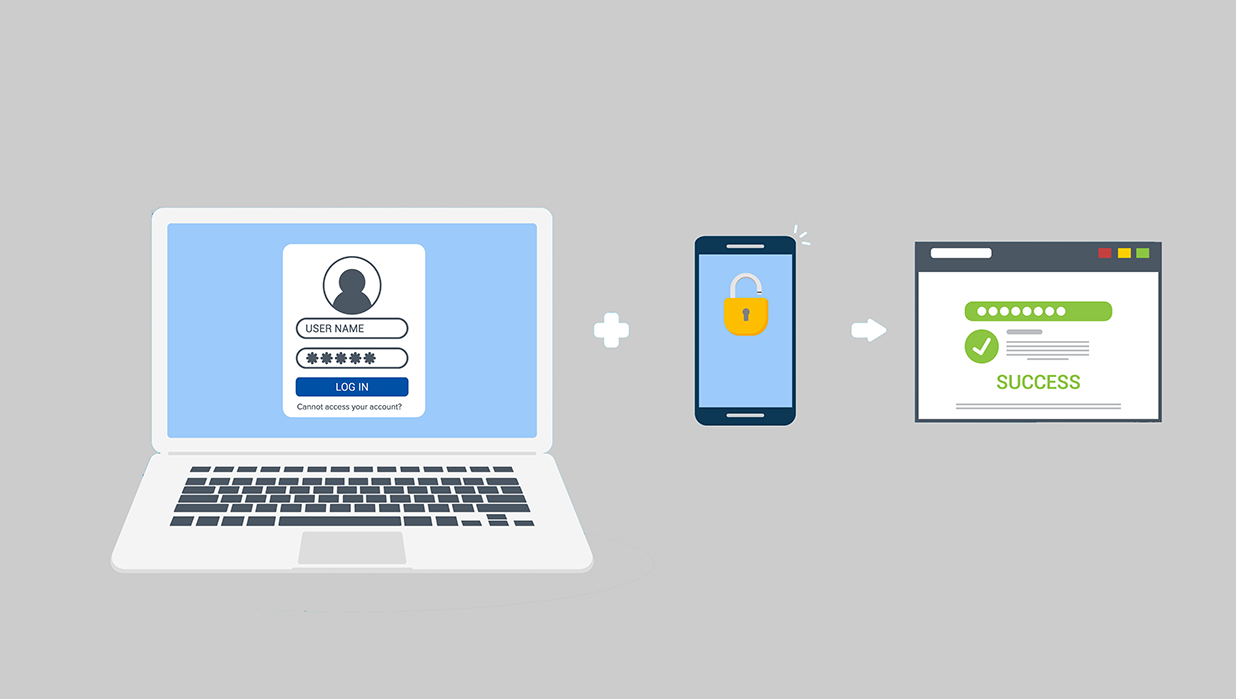
Multi-Factor Authentication (MFA) helps keep your Hawkeye accounts secure by adding an extra step to the login process. You’ll use something you know—like your username and password—plus something you have, such as your phone or a Hawkeye provided key fob. This way, even if someone gets your password, they still can’t access your account.

With MFA, you’ll verify your identity twice: once with your password and once with a trusted device. Duo Security provides this protection, giving you a safer computing environment that follows industry best practices.

Services currently protected by Duo Security MFA include:

  • myHawkeye
  • Colleague
  • Canvas
  • Zoom
  • Google G Suite
  • Panopto

More services will be added in the future.

Setting up Multi-Factor Authentication

You’ll need to register at least one device that can receive push notifications or codes. This could be your cell phone, tablet, office phone, or a Hawkeye provided key fob. You can even set up multiple options so you always have a backup.

When you log in to a system protected by Multi-Factor Authentication (MFA), you’ll be asked for a second step of verification. How you complete that step depends on the method you choose.

background

Duo Mobile is a free app for iOS and Android phones or tablets. It’s quick, easy to use, and doesn’t require cell service—as long as you have Wi-Fi or mobile data. When online, Duo sends a push notification to approve your login. When offline, you can generate a passcode directly in the app. (Supports iOS 12+ and Android 8+.)

Note:  Jailbroken or rooted devices aren’t allowed.

  1. Register Your Device
    • If you're using a smartphone, enter your phone number. If you're using a tablet, click I have a tablet for a tablet and skip to Step 2.
    • Confirm your number is correct.
    • If the number is already registered, verify ownership via passcode or phone call.
  2. Download Duo Mobile
  3. Link Duo Mobile
    • Open the app and scan the QR code on your computer screen.
    • Click Continue when confirmation appears.
  4. Log In with Duo
    • Click Log in with Duo on your computer.
    • Approve the first Duo Push on your device or use a passcode.

You’ll need to use a personal office phone or landline. Shared office phones and classroom phones won’t work because they can’t confirm it’s really you.

  1. Add your number
    • Enter your phone number and select your country.
    • For a landline, check This is a landline phone.
    • Click Add phone number.
  2. Landline extensions
    • If your landline has an extension: Enter the extension and click Add extension 
    • If no extension: Click Skip this step.
  3. Verify your number
    • Confirm your phone number (and extension, if entered).
    • If the number is already registered, verify ownership via SMS or phone call code.
  4. Finish setup
    • Click Continue, then Skip for now on the next screen.
    • Click Log in with Duo to complete setup.

Logging in

  • Phone call: Click Call Phone then answer and press any key to verify.
  • Text passcode: Click Send a text passcode then enter the code received and click Verify.

Keep in mind that key fobs may require syncing, incur costs, and need regular maintenance.

Manage Your Devices


With Duo Security, you can easily manage your devices—add, edit, or remove authentication methods—through the Duo Security self-service portal.

  1. When logging in to a protected application, click the "Other options" link on the Duo prompt.
  2. Select “Manage devices”.
  3. Select a method to verify your identity on the “Verify your identity before managing devices” screen.

Once verified, you’ll see the Duo self-service portal with all your enrolled devices. From there, you can update your current device settings or add additional devices.

What Should I Do If?

If your registered device is lost, stolen, or you think your Hawkeye login credentials might have been compromised, call the CIS Helpdesk immediately.

If you forget your mobile device and don’t have another way to authenticate, call the CIS Helpdesk to get a One-Time Bypass code.

If someone tries to access your account using your username and password, Duo will notify you through one of your enrolled authentication methods.

If you receive a login request you didn’t make and suspect fraud, deny the request:

  • In the mobile app, tap Deny
  • On a phone call, press 0

This will block the login attempt and report it as fraudulent.

Duo Security Guides and Resources

Contact Us

Communication and Information Services (CIS)

319-296-4415
Email CIS

Regular Hours — Fall 2025

Monday – Friday 8 AM – 4:30 PM